Control Switch Panel (CSP) Manual
IntroductionThe Control Switch Panel (CSP) is designed for easy operation of the PowerSteer system (v 4 or higher: 10.6.X version of APP and 2.4.X version of firmware), allowing quick access to key functions while working in the field.
|
|
Button FunctionalityShift Lines Left 1 cm – Moves the guidance line 1 cm to the left. Shift Lines Right 1 cm – Moves the guidance line 1 cm to the right. A / B – Set or adjust the start and end points (AB points) for a new line. Shift Line to My Position – Moves the nearest working line to the current tractor position. F1 / F2 – Configurable buttons for quick access to custom functions. Implement On/Off (F1) – Controls the attached implement: If off, pressing the button will activate it and display its status on the map. If on, pressing the button will deactivate it and remove its active status. Change View 2D/3D – Switches between 2D and 3D map views. Autosteering Control Start/Stop – Engages or disengages the autosteering process.
|
|
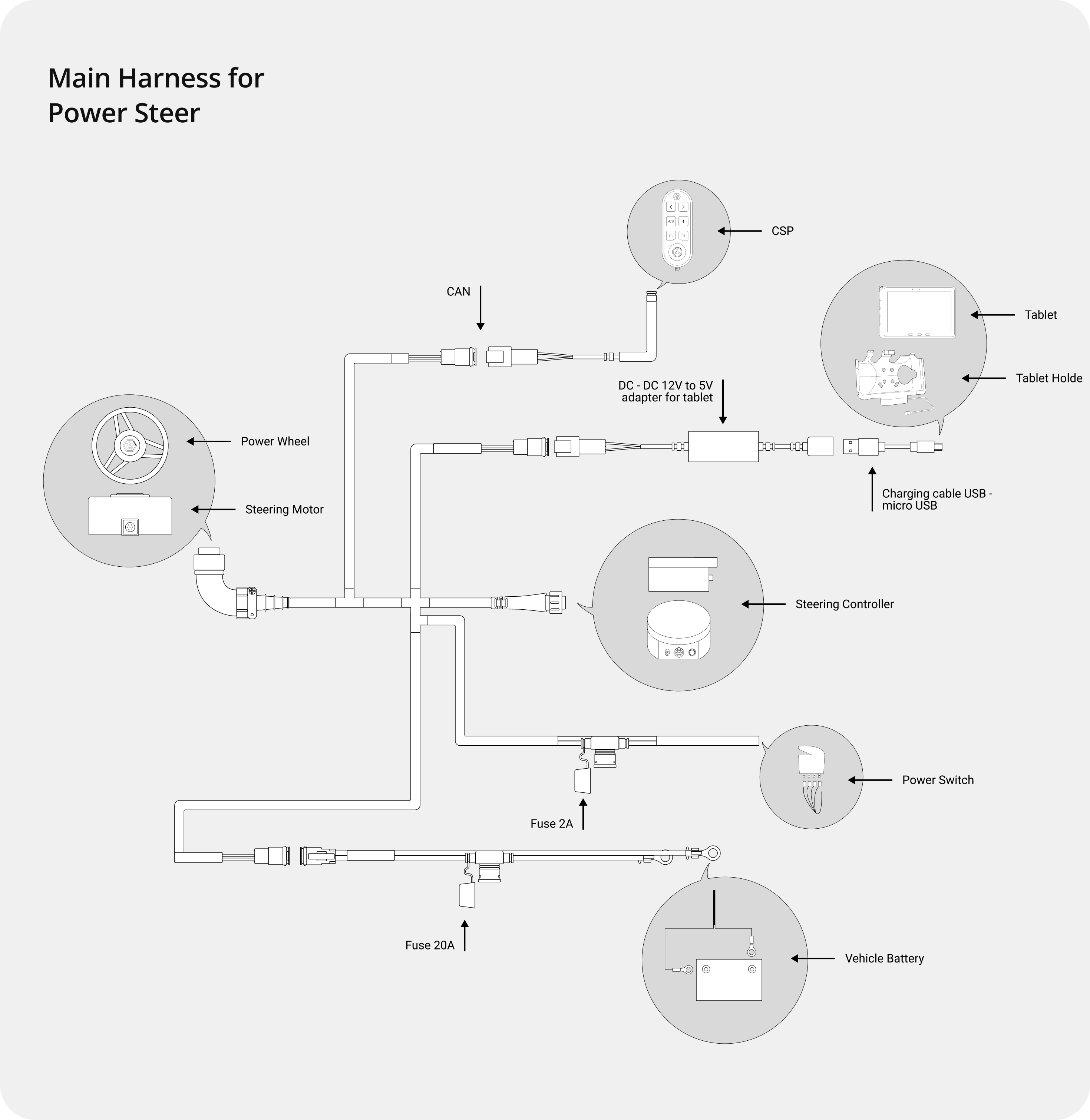
Connection GuideVersion Differences V3 of PowerSteer: Connect the Control Switch Panel (CSP) via the current connection scheme. V4 of PowerSteer: Connect the Control Switch Panel (CSP)
Component PreparationEnsure the availability of the following components: Control Switch Panel button Control Switch Panel power cable Connector for the steering motor (for PowerSteer v3) Connection Sequence (for PowerSteer v3)Connect the PowerSteer Button to the power cable using the designated connector. Connect the Power Cable through the CAN Connector. Connect the Main Cable to the motor adapter. Connect the Steering Motor via a 7-pin plug. Connection Sequence (V4)Connect the Control Switch Panel (CSP) directly to the main harness CAN. Ensure a secure and reliable connection.
|
PowerSteer V3
PowerSteer V4
|
Important Notes
|
|
Button States and Indica-tors
|
|
Recommendations & SafetyFamiliarise yourself with the App settings before use: FieldBee Knowledge Base. Use the system within the tractor's operational conditions and remain aware of field surroundings. |